Open the Health app
Find and open the Health app on your iPhone. Its icon is white with a red heart.

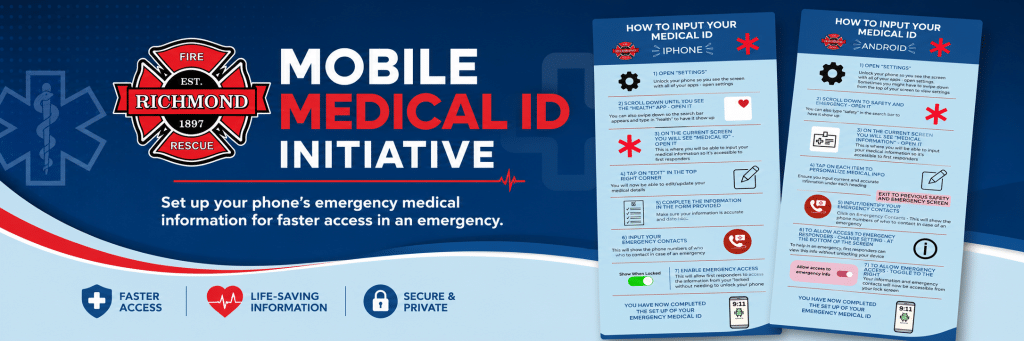
Helping first responders quickly access important medical information when every second matters.
During an emergency, you may be unable to answer questions about your health. A mobile Medical ID can make selected medical information and emergency contacts available from your phone’s locked screen.
Richmond Fire-Rescue is encouraging residents to set up this feature, confirm that emergency access is enabled and help family members do the same.
Learn how Richmond Fire-Rescue’s Mobile Medical ID Initiative can help make important information accessible during an emergency.
Richmond Fire-Rescue public education video
Choose your device and follow the step-by-step instructions.
Use Apple’s Health app to add your emergency information and make it accessible from your locked screen. The process should take only a few minutes.
Find and open the Health app on your iPhone. Its icon is white with a red heart.
Tap your profile picture in the upper-right corner, and then select Medical ID.
Tap Get Started if you have not created a Medical ID before. If one already exists, tap Edit.
Enter the information you want available during an emergency. Depending on your needs, this may include:
Scroll to Emergency Contacts, tap Add Emergency Contact, choose someone from your contacts and identify their relationship to you.
Scroll to the emergency access settings and turn on Show When Locked. This is the setting that allows someone assisting you to view your Medical ID without entering your passcode.
Review the information for accuracy and tap Done to save your changes.
Android phones can make selected medical information and emergency contacts available from the locked screen. Menu names may differ depending on the phone’s manufacturer and software version.
Open the Safety or Personal Safety app and select Your info. On other devices, open Settings and choose Safety and emergency.
Tap Medical information, Medical info or the similarly named option shown on your device.
Enter accurate information that may help during an emergency. Available fields may include:
Return to the emergency information screen, select Emergency contacts and choose Add contact. Select someone from your contacts who has agreed to be listed.
Turn on any setting labelled Show when locked, Show on Lock screen or Allow emergency access. The exact wording will depend on your phone.
Check the spelling of medication names, confirm your emergency contact numbers and save your changes. Some devices save each entry automatically.
Your Medical ID should be easy to understand during an emergency. Include accurate, current information that may help first responders provide informed care or contact someone you trust.
List diagnosed conditions that may be important during emergency assessment or treatment.
Include known allergies that could affect care, particularly allergies to medications or materials used during treatment.
Add medications you currently take, using the names shown on your prescription or medication packaging.
Add your blood type only when it has been confirmed through reliable medical information.
Select people who are likely to answer and who understand that they have been listed as your emergency contacts.
Use the notes area for brief information that may help responders understand your needs during an emergency.
Set up your Medical ID, test it from your phone’s locked screen and encourage the people close to you to do the same.
Setting up your own phone is a good first step. Helping someone else complete theirs can be just as valuable.
Offer to help parents, grandparents or other relatives find the emergency settings on their phones.
Tell the people you have listed and confirm that their phone numbers and contact details are current.
Send this page to friends, neighbours and community groups who may benefit from a simple setup guide.